Anti-Aliasing
Adds modern anti-aliasing and sharpening effects to RimWorld. Smooths jagged edges on sprites and terrain without impacting gameplay performance. Works with any texture or graphics feature.
Comparisons
Default Textures w/ Compression: https://imgsli.com/NDQ3MjI2
Upscaled Textures w/o Compression: https://imgsli.com/NDQ4MDQ5
Features
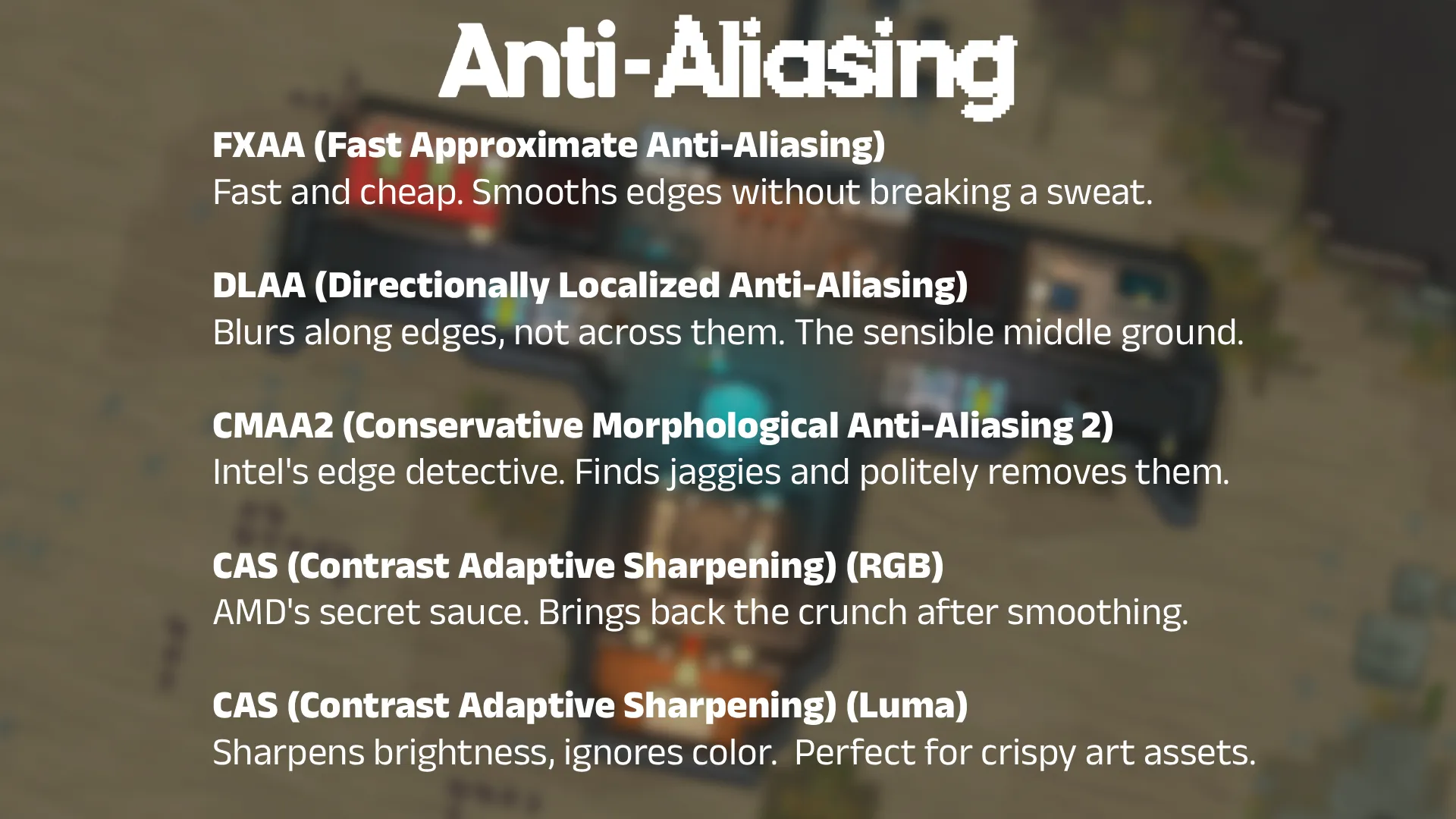
- FXAA: Fast Approximate Anti-Aliasing.
- DLAA: Directional Localized Anti-Aliasing.
- CMAA2: Conservative Morphological Anti-Aliasing.
- CAS RGB & Luma: Contrast Adaptive Sharpening.
- GPU post-processing: All effects run as post-process shaders on the GPU.
- Negligible CPU overhead: Processing happens after rendering, with minimal effect on TPS.
- Compatibility: Compatible with graphics and texture mods.
Performance
Game renders scene → source RT → OnRenderImage → AA blit(s) → destination RT → Present
Each AA method adds:
- FXAA: 1 blit
- DLAA Low: 1 blit
- DLAA High: 2 blits (horizontal pre-filter → vertical)
- CMAA2 Low: 2 blits (edge detect → shape blend)
- CMAA2 High: 3 blits (edge detect → shape blend → quality pass)
- CAS (RGB/Luma): 1 blit (added after AA if enabled)
The overhead is minimal for sprite-based 2D rendering like RimWorld. Modern GPUs handle these full-screen blits efficiently. However, like anything graphics related the cost is not free. Any additional blit or post-process step invariably will reduce FPS by adding more operations to the graphics pipeline, please test and report your findings if you have substantial (or noticable) performance loss.
Requirements
- Harmony
Supported Languages
All
Supported Versions
1.4, 1.5, 1.6
Mods by Remi Workshop Collection
Technical Notes
FXAA - Fast Approximate Anti-Aliasing
FXAA works by detecting edges based on luminance (brightness) contrast, then blurring along those edges.
How FXAA sees your screen:
Before: Edge Detection: After:
┌─────────┐ ┌─────────┐ ┌─────────┐
│▓▓▓▓░░░░░│ │ ││││ │ │▓▓▓▒░░░░░│
│▓▓▓▓░░░░░│ → │ ││││ │ → │▓▓▓▒▒░░░░│
│▓▓▓▓░░░░░│ │ ││││ │ │▓▓▓▒▒░░░░│
└─────────┘ └─────────┘ └─────────┘
Hard edge "Found it!" Smoothed
Technical Details:
• Samples 5x5 neighborhood to compute local contrast
• Determines edge orientation (horizontal vs vertical)
• Walks along edge up to 6 pixels to find endpoints
• Blends pixels perpendicular to edge direction
• Single pass, extremely GPU-friendly
Best for: Lower-end hardware, maximum performance
DLAA - Directional Localized Anti-Aliasing
DLAA is smarter about where it blurs. It only smooths along the direction of edges, preserving detail perpendicular to them.
FXAA vs DLAA on diagonal lines:
FXAA blurs everything: DLAA blurs directionally:
░▒▒▒░ ░░▓░░
░▒▒▒░ ░░▓░░
░▒▒▒░ vs ░░▓░░
░▒▒▒░ ░░▓░░
(softer overall) (sharp perpendicular)
Technical Details:
• Pass 1: Horizontal pre-filter detects and softens horizontal edges
• Pass 2: Vertical edge detection with directional search
• Searches up to 8 pixels along detected edge direction
• Preserves high-frequency detail perpendicular to edges
• Optional diagonal support in High Quality mode
Best for: Balanced quality/performance, recommended for most users
CMAA2 - Conservative Morphological Anti-Aliasing
CMAA2 recognizes patterns. It identifies common aliasing shapes (Z-shapes, L-corners, staircases) and applies targeted fixes.
Pattern Recognition:
Z-Shape: L-Corner: Staircase:
▓▓▓░░░ ▓▓▓▓▓░ ░░░▓▓
░░▓▓▓░ ▓░░░░░ ░░▓▓░
░░░░▓▓ ▓░░░░░ ░▓▓░░
CMAA2 identifies these shapes and blends
specifically at the jagged transition points,
leaving flat areas completely untouched.
Technical Details:
• Pass 1: Edge detection with local contrast adaptation
• Pass 2: Shape classification (Z, L, staircase patterns)
• Pass 3: Targeted blending at identified problem areas
• Adapts threshold based on surrounding contrast
• Preserves intentional pixel art edges better than FXAA
Best for: Maximum quality, high-resolution displays
CAS - Contrast Adaptive Sharpening
CAS restores detail that anti-aliasing may soften. Unlike basic sharpening, it adapts to local contrast to avoid amplifying noise or creating halos.
Traditional Sharpen vs CAS:
Original: Basic Sharpen: CAS:
░░▓▓▓░░ ░░▓▓▓░░ ░░▓▓▓░░
░░▓▓▓░░ → ░▒▓▓▓▒░ vs ░░▓▓▓░░
░░▓▓▓░░ ░░▓▓▓░░ ░░▓▓▓░░
↑halos↑ no artifacts
Two Modes:
CAS (RGB) - Sharpens all color channels independently
• Maximum detail enhancement
• Best for most content
CAS (Luma) - Sharpens brightness only, preserves colors
• Prevents color fringing on high-contrast edges
• Better for pixel art or stylized graphics