Overview
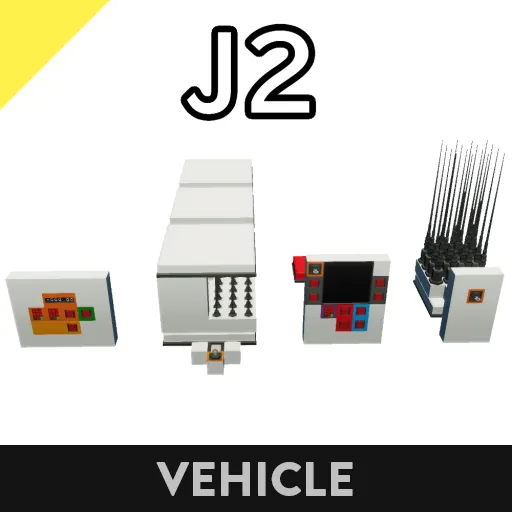
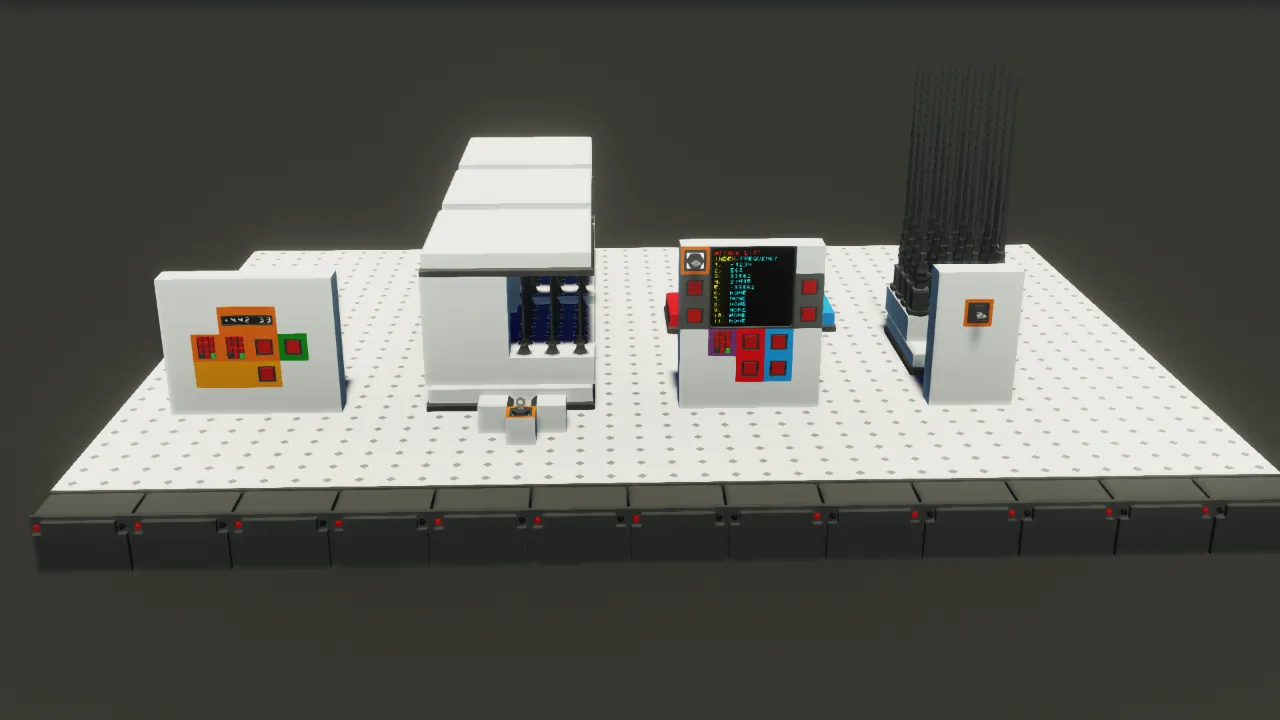
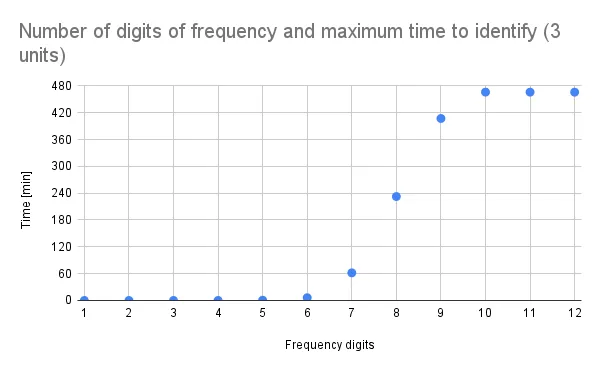
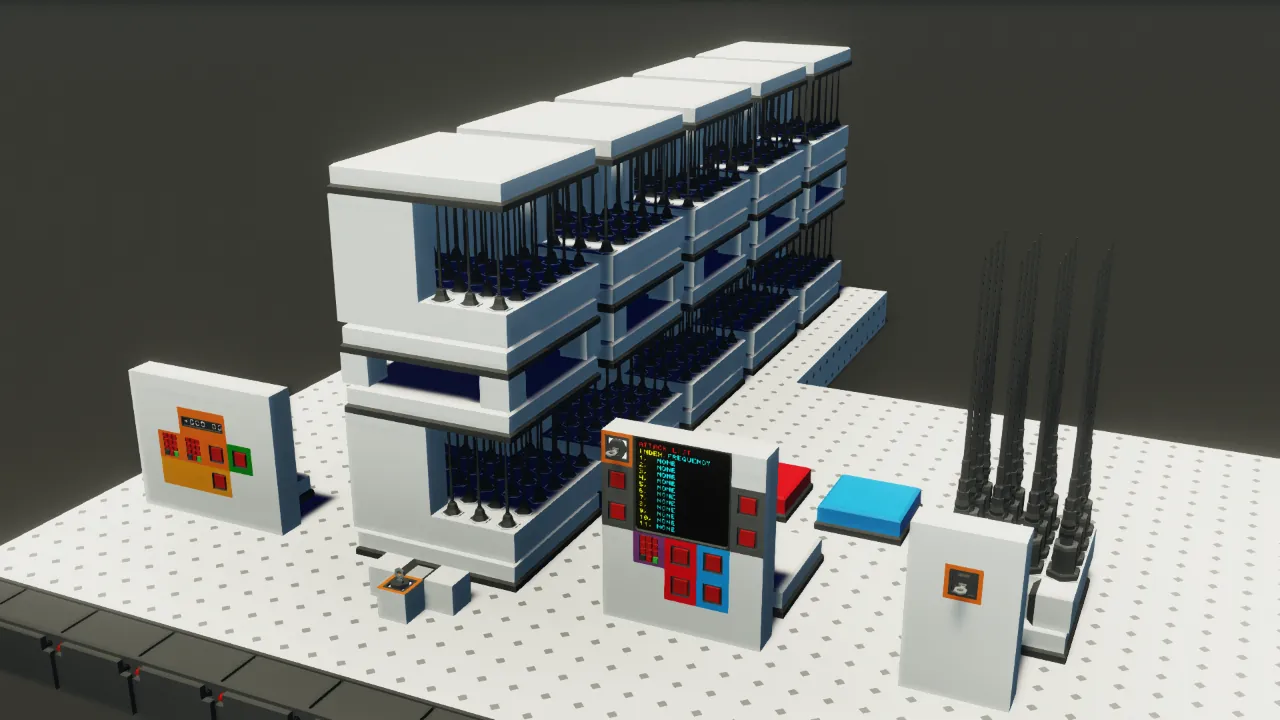
This jamming device allows for expansion of antennas. Using 10 units, the entire range can be searched in approximately 140 minutes.
Specifications
[list]
[*] Initially, three search units are connected.
[*] Search units can be added in any number via daisy chain connection.
[*] One search unit can search 1,800 frequencies per second.
[*] Can jam 16 frequencies simultaneously (17 or more via time-division multiplexing).
[*] Whitelist function included.
[*] Register frequencies to the whitelist or attack list using numerical input.
[/list]
Operation
How to specify a range for searching and jamming
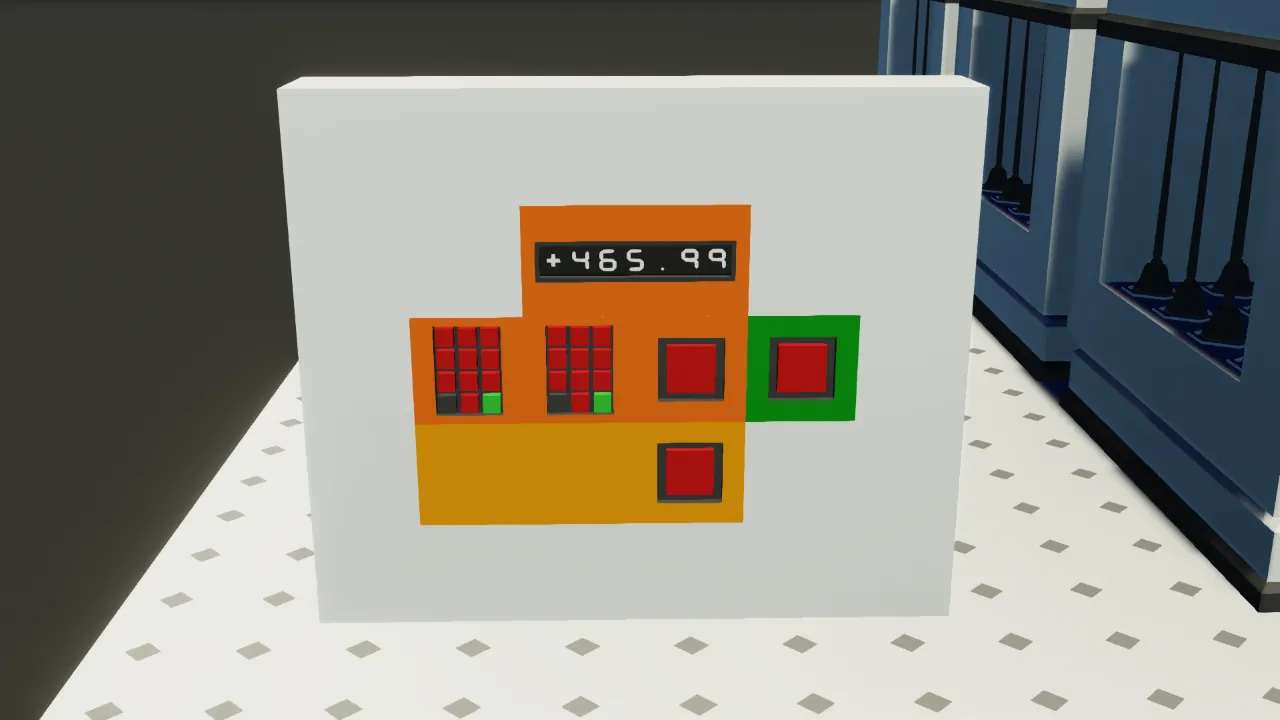
1. Set the lower and upper limits of the search range using the "Lower limit of the search range" and "Upper limit of the search range" keypads on the left control panel.
2. Press the "Search in specified range" button immediately to the right.
3. Turn on the "Attack" key button on the rightmost control panel.
4. Jamming will begin on the specified frequencies within the range.
The remaining search time is displayed on the "Time remaining to search [min]" digital display on the leftmost control panel.
How to Search and Jam the Full Range
1. Press the "Search in full range" button on the left control panel.
2. Turn on the "Attack" key button on the rightmost control panel.
3. Jamming will begin on the specified frequencies.
This method takes time, so it is not recommended if the search unit is 9 or less.
Continuous Search Mode
1. Set the lower and upper limits of the search range using the "Lower limit of the search range" and "Upper limit of the search range" keypads on the left control panel.
2. Press the "Continuous search mode" button on the right.
3. Turn on the "Attack" keypad on the rightmost control panel.
This mode automatically searches again after the specified range is completed.
Add to Whitelist
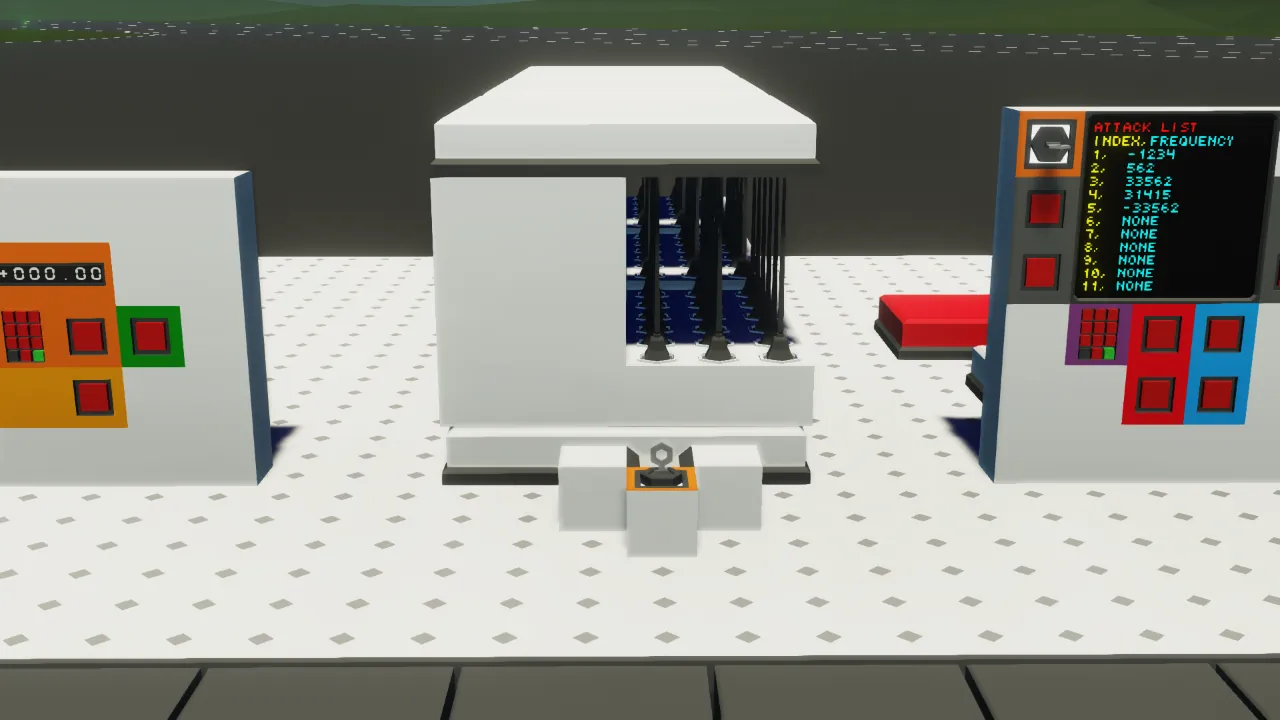
1. Enter the frequency you want to add using the "Frequency input" keypad on the second control panel from the right.
2. Press the "Add white list" button.
Frequencies added to the whitelist will no longer be added to the attack list.
Also, if the frequency you want to add already exists in the attack list, it will be deleted.
Manually Add to Attack List
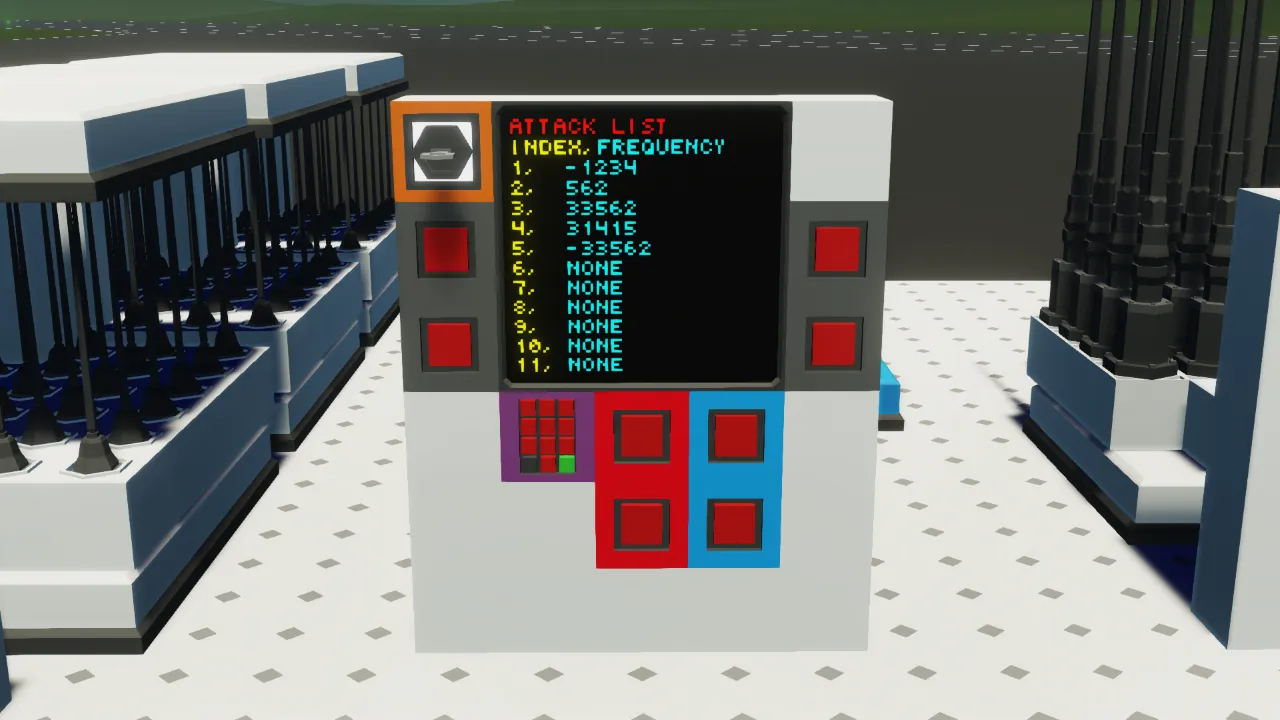
1. Enter the frequency you want to add using the "Frequency input" keypad on the second control panel from the right.
2. Press the "Add attack list" button.
Adding to the Attack List or Whitelist (Numerical Input)
1. Prepare the frequency you want to add as a numerical output.
2. Connect it to the numerical input node of the "Add white list" or "Add attack list" microcontroller.
This function facilitates integration with other systems.
How to Increase Numeric Inputs for the Attack List or Whitelist
1. Increase the size of the microcontroller.
2. Add a numerical input node.
3. Connect it to the internal "Composite Write (number)".
You can increase it up to 32.
How to Increase Search Units
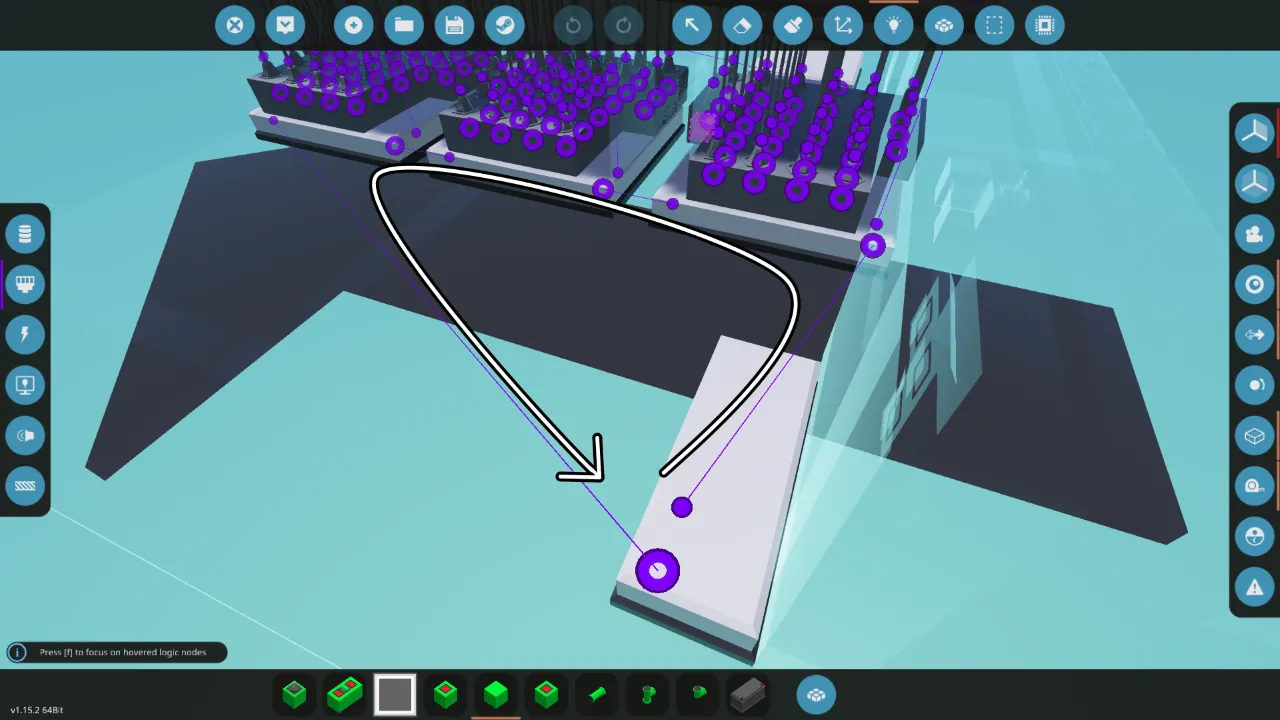
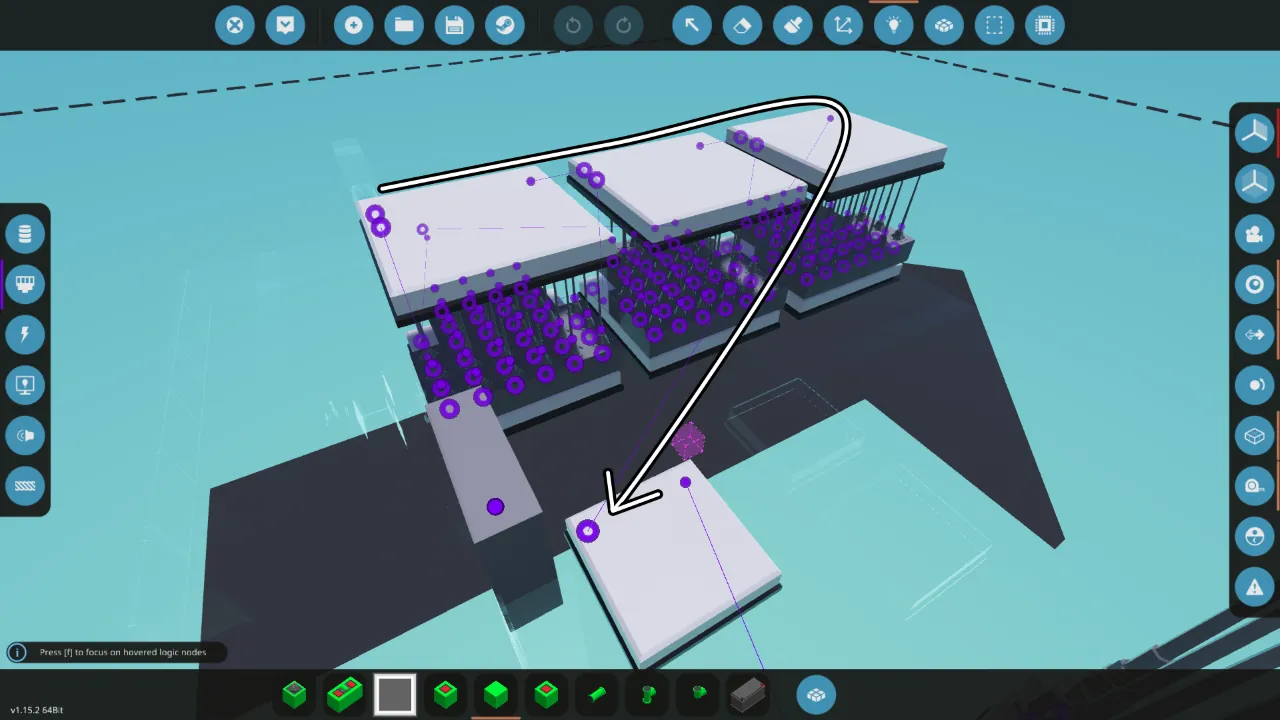
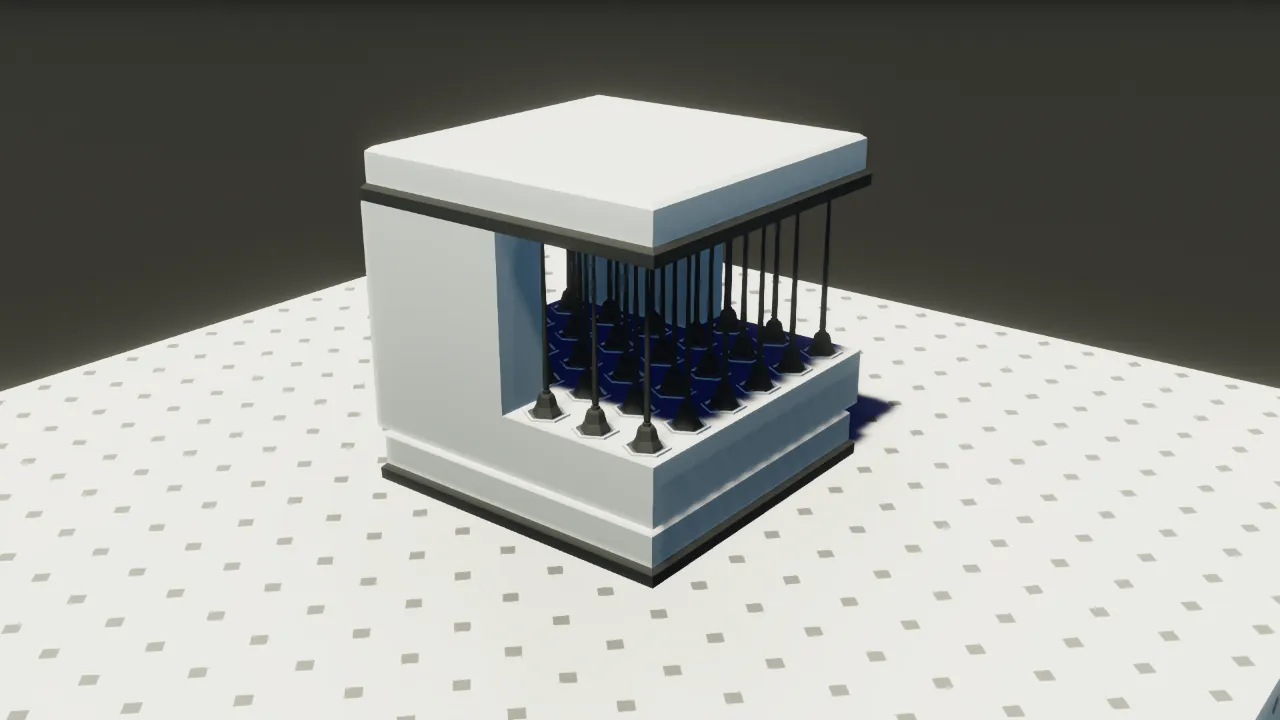
1. Add search units (see Steam image) by copying and pasting. Merge them as well.
2. Connect the "Output frequency search command" composite of the "Command transmission device" microcontroller to the "Input frequency search command" composite of the microcontroller below the first unit.
3. Connect the other units in the same way.
4. Connect the "Output frequency search command" composite of the last unit to the "Input frequency search command" composite of the "Command transmission device" microcontroller.
5. Connect the "Output Found frequency" composite of the first unit to the "Input Found frequency" of the next unit.
6. Connect the other microcontrollers in the same way.
7. Connect the "Output Found frequency" composite of the last unit to the "Found frequency" composite of the "Frequency recorder" microcontroller.
8. Connect power nodes to all units.
You can connect any number of search units in this way.
How to Increase the Number of Jammer Antennas
1. Increase the size of the "Jammer" microcontroller.
2. Add a numeric output node.
3. Connect the internal numeric output node to the remaining "Composite Read (number)" output.
4. Enter the additional number of antennas in the "Number of attack antennas" property.
5. Add antennas.
6. Connect the additional numeric output node to the antenna, the "Relay and antenna power" logic node, the "Attack data" composite, and power.
Using this method, you can add up to 32 antennas.
Installation
1. Move using cut and paste.
2. Connect merge and power nodes.
Program
[url=https%3A%2F%2Fdrive.google.com%2Fdrive%2Ffolders%2F1uRlSbWNU-who42VCisLbwa-lSmY6_wK-%3Fusp%3Dsharing]https://drive.google.com/drive/folders/1uRlSbWNU-who42VCisLbwa-lSmY6_wK-?usp=sharing[/url]
Others
[list]
[*] You can remodel it.
[*] You may distribute it secondarily (if you modify it).
[*] You can incorporate it.
[*] You can make a video.
[*] You don't have to get permission.
[/list]
I used google translate